Access and security
Every person in the jamaat can sign in as a member. A role lets a person do more. For example: approve expenses for 1 umoor.
Roles
A role covers 1 or more areas. Each area is one part of the app.
| Area | A person with this area can |
|---|---|
| Pledges | Add and change pledges. |
| Expenses | Approve expenses. |
| Receipts | Send receipts. |
| Members | Invite or remove members. |
| Budgets | Work on the budget. |
| QuickBooks | Connect QuickBooks and change Your funds. |
| Access | Give other people a role. |
| Jamaat settings | Change the jamaat's settings. |
A role can cover the whole jamaat, 1 umoor, or 1 fund.
Give someone a role
This is for the treasurer.
Where. Access.
- Type the name in Search people.
- Press Manage.
- Choose the role. Then choose the umoor or fund, if the screen asks.
- Anything to leave out? Untick any area this person does not need.
- Read Check this before it is saved. Save.
- The app asks Confirm that this is you. Use your passkey or code.
Next. The screen says "This person can now sign in to this Jamaat."
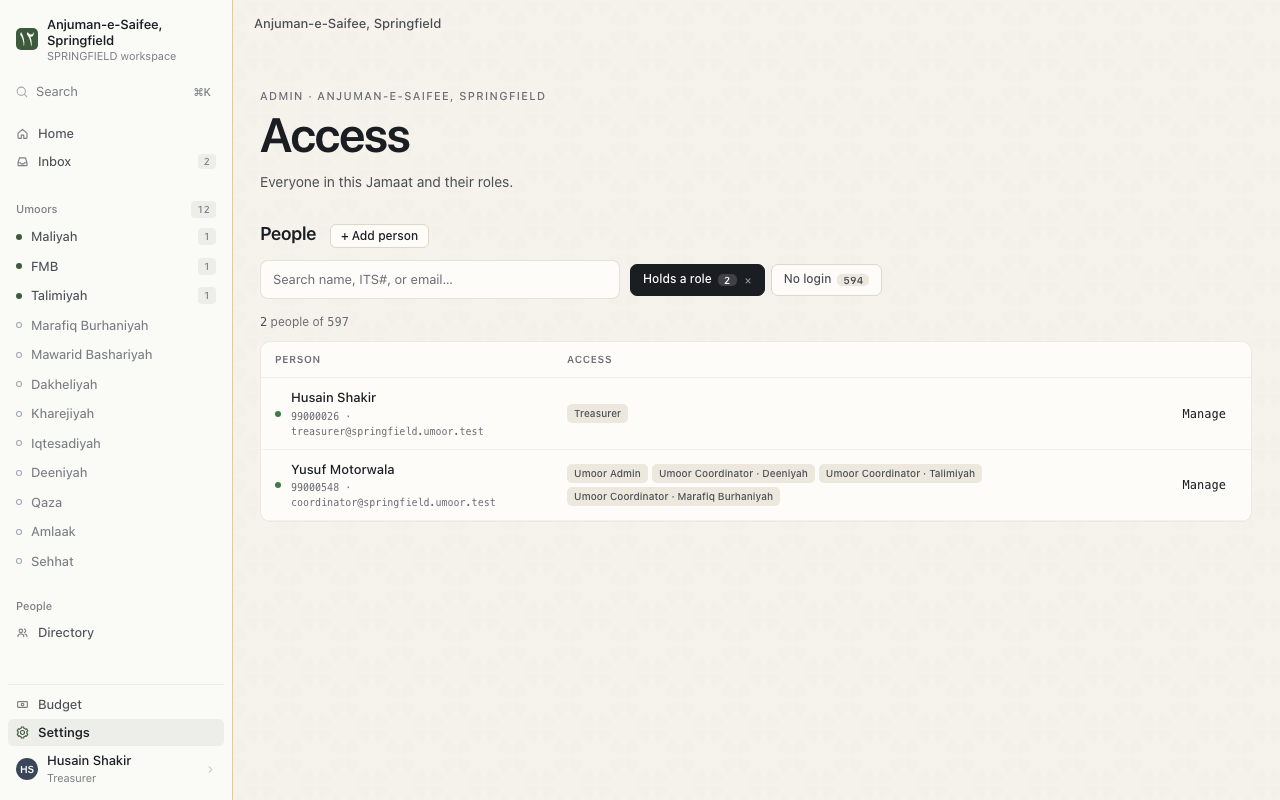
Remove a role
- Open Access. Find the person.
- Press Manage. Remove the role.
The screen says "Role removed." The person still sees what a member sees.
Add someone who is not in the list
- On Access, add a person.
- Fill Full name and ITS / eJamaat #. Email is optional.
Signing in again
The app signs you out after a long time. Sign in again with ITS. Before some actions, the app asks you to confirm with your passkey or code.