Set up your jamaat
This guide is for the treasurer. It has 6 steps. Most jamaats finish in about 15 minutes.
You do the 6 steps. The app reads and copies your payments between step 1 and step 2.
Before you begin
- You can sign in with ITS.
- Your account is secure. You added a passkey or an authenticator app.
- You have the treasurer role in the app.
- You have a QuickBooks login. Its user type is Admin.
1. Connect QuickBooks
The app needs your payments. It reads them from QuickBooks.
- Open the app. The first screen says Your money, in funds.
- Press Connect QuickBooks.
- Sign in to QuickBooks.
- Choose your jamaat's QuickBooks company.
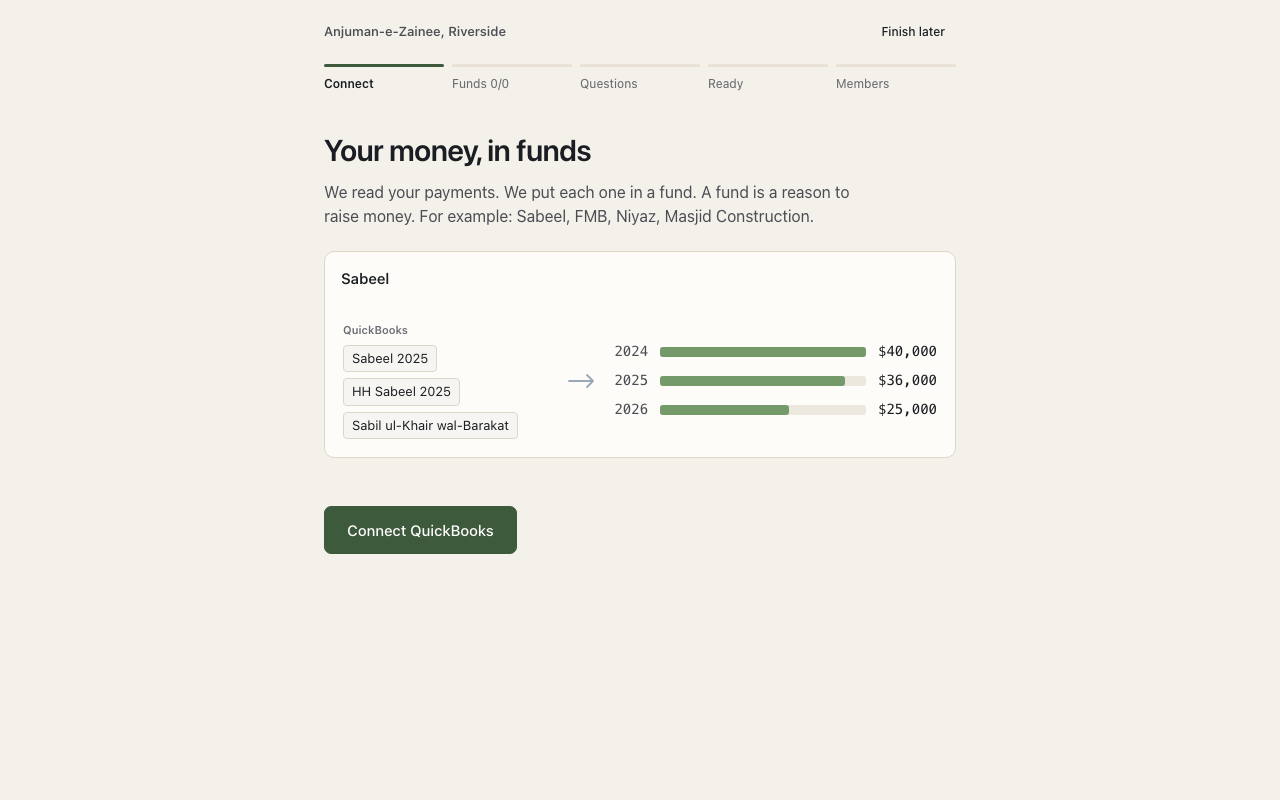
Next. The app shows Reading, then Copying. This takes a few minutes. You do not need to do anything.
Reminders. Your QuickBooks is already connected? The button says Read QuickBooks. Press it.
2. Check your funds
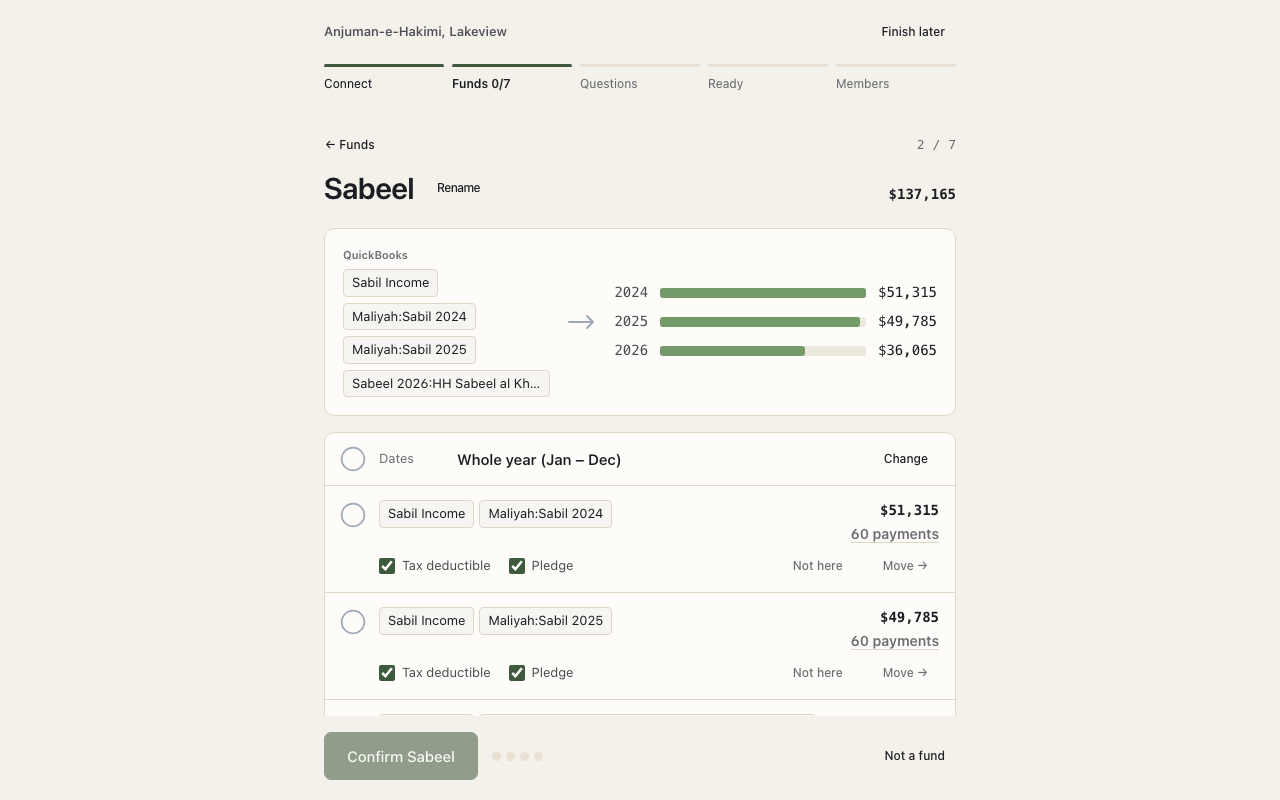
A fund is a reason to raise money. The app starts with 4 funds: Sabeel, FMB, Madresah and Ashara Niyaz. It puts each payment in a fund. More words: Words to know.
The top of the screen shows your progress. For example: Funds 2/4.
- Open a fund.
- Check its name. Change the name if your jamaat uses another word.
- Check its Dates. These are the start and end of the fund's year.
- Check its payments. One payment is for another fund? Press Not here on that row.
- Press Confirm and the fund's name. For example: Confirm Sabeel.
- Do the same for each fund.
Add a fund. Press New fund. Type its name. Set its dates.
Tip. A building gets its own fund. For example: Masjid Construction.
3. Check Not a fund
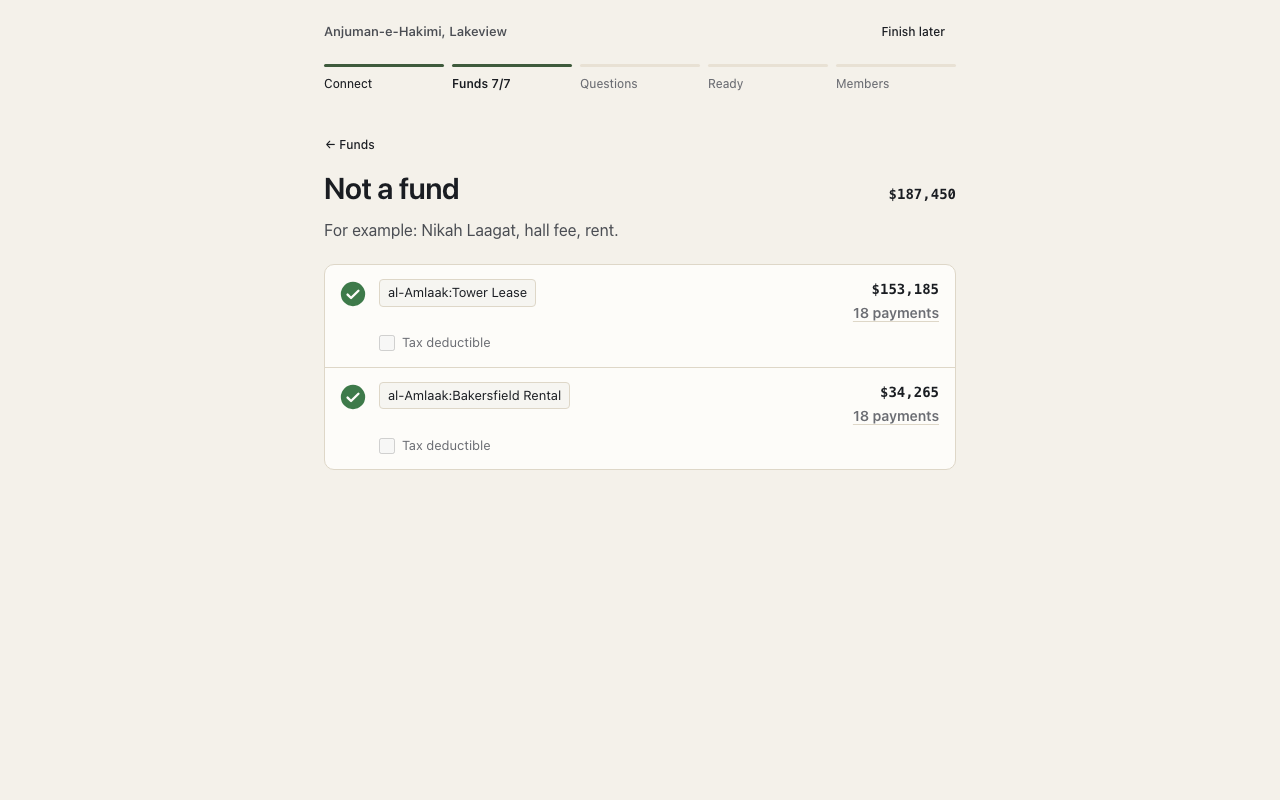
Some money is for other things. For example: Nikah Laagat, hall fee, rent. The app puts this money in Not a fund.
- Press Check Not a fund.
- Read the list.
- One payment is for a fund? Press Not here. Choose the fund.
4. Answer questions
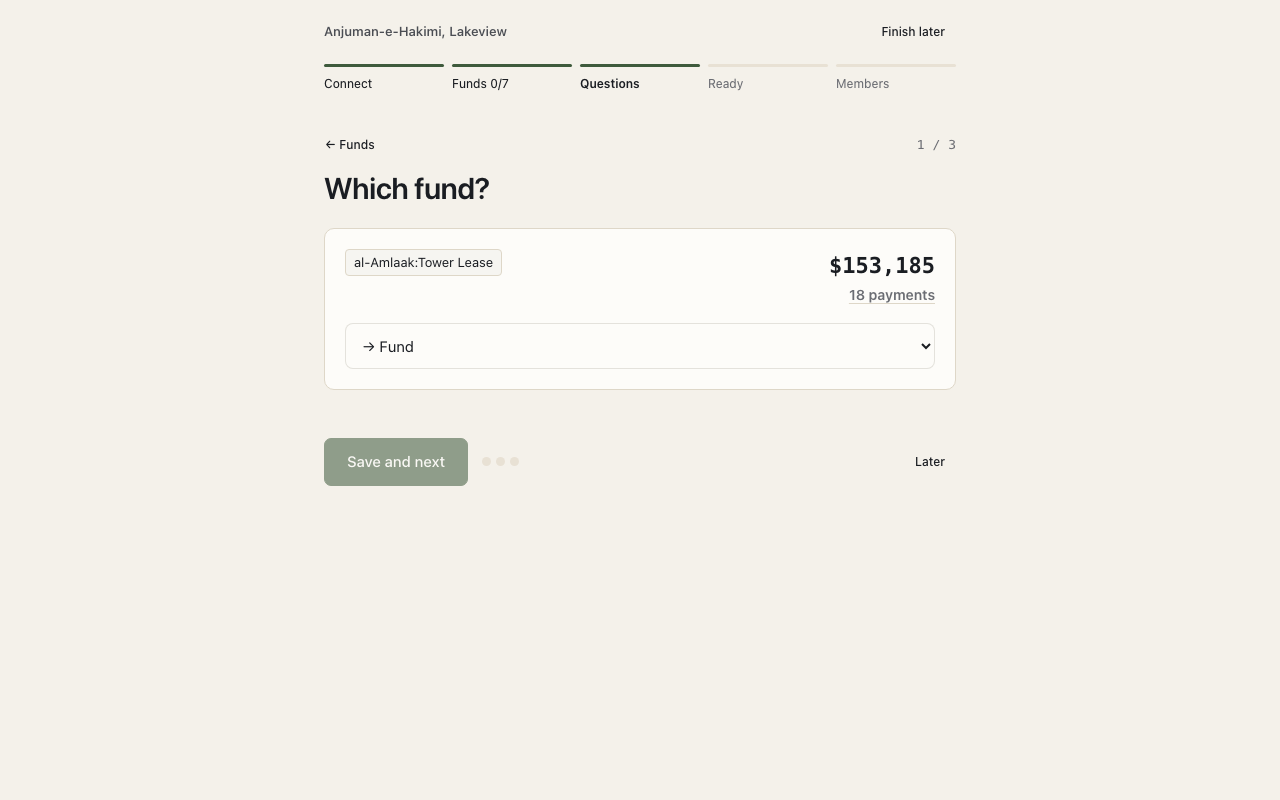
Some payments need your answer. The app asks you about each one.
- Press Answer questions.
- The screen asks Which fund?
- Choose 1 answer: a fund, New fund, Not a fund or Another jamaat.
- Is the money tax deductible? Tick Tax deductible.
- Is the money for a pledge? Tick Pledge.
- Press Save and next.
Next. Your setup is done. All your funds show READY. Press See ready funds to check them.
Reminders. The app stopped sorting? The screen says Sorting stopped. Press Sort again.
5. Link members
QuickBooks has customers. The app has members from ITS. Link each customer to a member. Then each member sees their own payments.
- On the READY screen, press Link members.
- The app already linked many customers. They have the Same ITS number or the Same name.
- For each other customer, press Choose the person. Type a name.
- A customer has no ITS number? Choose Not in ITS.
- A customer is a business or a group? Choose Not a person.
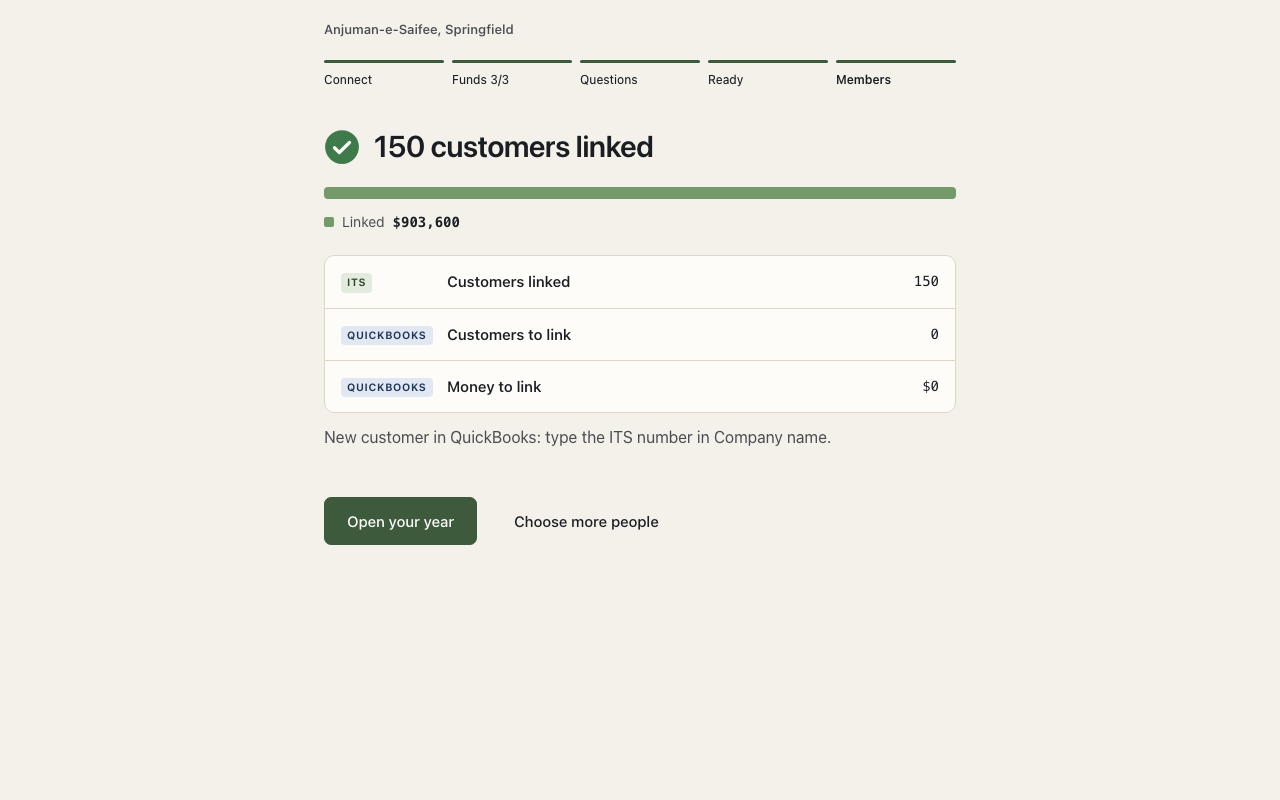
The top of the screen shows 3 numbers: Customers linked, Customers to link and Money to link.
Tip. Add a new customer in QuickBooks? Type the ITS number in Company name. The app then links the customer for you.
6. Two more steps
The home page shows 2 more steps after setup.
- Give people access. Give each coordinator a role. Read the Access and security tab.
- Add pledges. Add the pledges your jamaat already has. Read the Pledges tab.
Reminders. You can open the setup again. You can change an answer there.